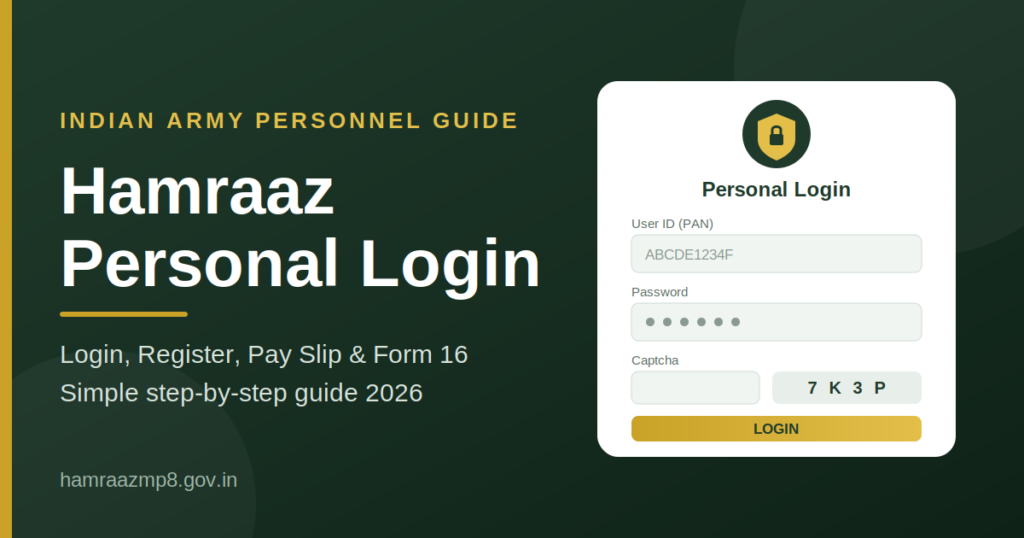

For serving personnel of the Indian Army, paperwork used to mean visiting the unit office, waiting for a clerk, and hoping the right document was available. Hamraaz changed that. The Hamraaz personal login lets a soldier open a secure online account and see pay slips, Form 16, service details and other personal information from a phone or computer, wherever they are posted.
This guide explains everything about the Hamraaz personal login in plain language. You will learn what Hamraaz is, who can use it, how to log in step by step, how to register for the first time, how to recover a forgotten password, how to download your pay slip and Form 16, and how to fix the most common problems. A table of login details is included so you can see the key information at a glance.
Table of Contents
What Is Hamraaz?
Hamraaz is a digital platform created for the Indian Army. It was developed in-house by the technical team of the Adjutant General’s Branch (MP-8), which looks after personnel matters in the Army. It is a government platform meant only for Army personnel, and it is not a public website that anyone can sign up for.
The word “Hamraaz” is Hindi/Urdu for a close confidant, someone you can share your secrets with. The name suits the platform, because it holds sensitive personal and financial information that must stay private.
The platform has two sides:
- Personal login, which individual soldiers use to see their own records.
- Admin login, which is normally used by authorised persons in a unit to handle administrative work.
This article focuses on the personal login.
Why Hamraaz Was Created
Before digital platforms, getting a pay slip or Form 16 meant going through the unit’s pay section. For soldiers posted in remote or high-altitude areas, or deployed away from their unit, this could take days or weeks. Hamraaz was built to give every soldier direct access to their own information without depending on someone else to print and hand over documents.
Official Website
The official portal is hamraazmp8.gov.in. The personal login page sits on the web portal under the same government domain. Always type the address yourself or use a bookmark you have saved. Do not click login links sent through messages, social media or unknown websites.
Who Can Use the Hamraaz Personal Login?
Hamraaz is meant for people connected with the Indian Army. Serving personnel are the main users. Some guides also say that retired personnel can use parts of the portal, so if you are a veteran, check the official site for the services available to you.
The platform is not for:
- Civilians with no connection to the Army
- Members of other armed forces, who have their own systems
- Anyone trying to access another person’s account
If you are unsure whether you are eligible, contact your unit’s pay or administrative section. They can tell you whether your details are in the system.
Key Features of Hamraaz Personal Login
Once you are logged in, the platform gives you access to a range of services. The exact list can change as the platform is updated, but the following features are the ones most often used.
Pay Slip Download
This is the most popular feature. You can select a month and year, view your pay slip, and download it as a PDF. Pay slips are often needed for bank loans, visa applications, rent agreements and credit card applications, so having instant access saves a lot of time.
Form 16
Form 16 is the tax certificate that shows the income tax deducted from your salary during a financial year. You need it when filing your income tax return. Instead of waiting for a printed copy, you can download it from your account.
Service Record and Personal Details
You can view personal and service information held about you, such as your service details and basic profile. Checking this regularly helps you spot mistakes early, such as a wrong date or a wrongly spelled name, so they can be corrected through the proper channel.
Leave and Other Services
Some guides mention leave-related and other service-related facilities, along with official notifications. Availability can vary, so treat this as a general description and check the portal for what is active for your account.
Financial Information
You can see a summary of your pay and deductions. If you think something is wrong, such as a missing allowance, you can compare your pay slip against what you expect and raise the matter with your pay section.
Hamraaz Personal Login Details at a Glance
The table below summarises the key information about the Hamraaz personal login. Details can change when the portal is updated, so always confirm against the official site.
| Item | Details |
|---|---|
| Platform name | Hamraaz |
| Run by | Indian Army, Adjutant General’s Branch (MP-8) |
| Official website | hamraazmp8.gov.in |
| Login type | Personal Login (for individuals) and Admin Login (for unit administrators) |
| User ID | PAN number (as reported by several guides) |
| Password | Set by you during registration; some guides say letters must be in capitals |
| Extra check | Captcha code on the login page |
| First-time registration needs | PAN, Date of Enrollment (DOE) and Employment ID, according to one guide |
| Main services | Pay slip, Form 16, service record, personal details |
| Cost | Free |
| Who can use it | Indian Army personnel |
Before You Log In: What You Need
Keep the following ready so the process goes smoothly:
- A working internet connection. A stable connection avoids session timeouts and failed downloads.
- Your PAN number. Most guides say this is your User ID.
- Your password. If you have never registered, you will need to create one first.
- Your registered mobile number. Some steps send an OTP to the mobile number linked to your records, so it should be current.
- A browser that is up to date. Chrome, Edge, Firefox and Safari all work for most government portals.
- A recent pay slip. It can help you find details like your Employment ID during registration.
How to Do the Hamraaz Personal Login: Step by Step
Follow these steps to log in once you have registered.
Step 1: Open the Official Website
Open your browser and type hamraazmp8.gov.in in the address bar. Check that the address is exactly right and that it ends with .gov.in. Fake websites often copy the look of the real one but use a slightly different address.
Step 2: Click on Personal Login
On the home page, find the menu and click Personal Login. This opens the login screen meant for individual users. Do not choose Admin Login unless you are an authorised administrator.
Step 3: Enter Your User ID
Type your User ID in the first field. Several guides say this is your PAN number, entered in capital letters. Check each character before moving on.
Step 4: Enter Your Password
Type your password carefully. Passwords are case sensitive. If your password contains letters, enter them exactly as you set them. One guide notes that capital letters may be required, so if the login fails, check your Caps Lock key first.
Step 5: Enter the Captcha
The captcha is a short code shown in an image. Type it exactly as shown. If you cannot read it, use the refresh option to get a new one.
Step 6: Click Login
Press the login button. If everything is correct, you will land on your personal dashboard, where you can see the services available to you.
Step 7: Log Out Safely
When you finish, always log out, especially if you used a shared or public computer. Close the browser and clear any downloaded files you no longer need.
Login Steps Summary Table
| Step | Action | Tip |
|---|---|---|
| 1 | Open hamraazmp8.gov.in | Type the address yourself or use a saved bookmark |
| 2 | Click Personal Login | Do not use Admin Login |
| 3 | Enter User ID (PAN) | Use capital letters |
| 4 | Enter password | Check Caps Lock and spelling |
| 5 | Enter captcha | Refresh if it is unclear |
| 6 | Click Login | Wait for the dashboard to load |
| 7 | Log out when done | Always log out on shared devices |
First-Time Registration on Hamraaz
If you have never used the platform, you need to register before you can log in. Registration links your identity to the Army’s records so that only you can see your information.
Information Usually Required
According to the guides we reviewed, first-time registration may ask for:
- Your PAN number
- Your Date of Enrollment (DOE), which is the date you joined the Army, usually entered as DD/MM/YYYY
- Your Employment ID, which can often be found on an older pay slip
- Your Army service number, in some versions of the process
The requirements may differ depending on the current version of the portal, so follow the instructions shown on the registration page.
Registration Steps
- Open the official website and go to the registration or new user option.
- Enter the details asked for, such as PAN, DOE and Employment ID.
- Verify your identity using the method shown on screen, which may include an OTP sent to your registered mobile number.
- Create a strong password and confirm it.
- Save your credentials safely and try logging in.
Registration Details Table
| Detail | Where to Find It | Notes |
|---|---|---|
| PAN number | PAN card | Must match Army records |
| Date of Enrollment (DOE) | Service records or documents | Enter in DD/MM/YYYY format |
| Employment ID | Old pay slip | Ask your pay section if you cannot find it |
| Registered mobile number | Linked to your records | Keep it updated for OTPs |
What to Do If You Forget Your Password
Forgetting a password is common, especially if you only log in once a month to get a pay slip. Here is what to do.
Use the Forgot Password Option
On the personal login page, look for a Forgot Password link. Click it and follow the instructions. You will usually be asked to confirm your identity with details such as your PAN and possibly an OTP.
Create a New Password
When the system lets you, choose a new password that is hard to guess. Use a mix of letters, numbers and symbols if allowed, and avoid birthdays, phone numbers or simple patterns. Remember that some guides say alphabet characters should be in capitals, so test your new password right away.
Contact Your Unit or the Helpdesk
If the reset does not work, speak to the administrative or pay section of your unit. They can tell you whether your details are correctly entered in the system and who to contact for further help.
How to Download Your Pay Slip
Once you are logged in, downloading a pay slip is simple.
Steps to Download
- Log in through Personal Login.
- Open the Pay Slip section from the menu.
- Select the month and year you need.
- Click the option to view or get the pay slip.
- Download the PDF and save it on your device.
Tips for Pay Slips
- Save copies of important months in a secure folder on your phone or computer.
- If a pay slip is not showing for a recent month, wait a few days, since it may not have been uploaded yet.
- If a figure looks wrong, contact your pay section instead of ignoring it, because errors are easier to fix soon after they occur.
How to Download Form 16
Form 16 is a key document at tax time.
- Log in through Personal Login.
- Go to the Form 16 section.
- Select the financial year.
- Download the file.
Check that your name, PAN and the tax figures are correct before using the form to file your return. If something does not match, ask your unit’s pay section.
Hamraaz Mobile App: What Is the Current Position?
Many people search for a Hamraaz app, so this point deserves a careful explanation. The Hamraaz mobile app was launched in 2017 and was widely used for pay slips and Form 16. It linked access to Aadhaar-based verification and an OTP sent to the registered mobile number.
However, the information online is mixed. Some websites still describe the app as active. Others say the app was discontinued in March 2023 and that the web portal is now the proper way to log in. They also warn that apps with the Hamraaz name on app stores may be fake.
Because of this confusion, the safest approach is:
- Use the official web portal at hamraazmp8.gov.in.
- Do not install any app unless the Army or the official website clearly confirms it.
- Never share Aadhaar, PAN, bank details or passwords through an app or website you are not sure about.
If you are unsure, ask your unit’s administrative section what the current approved method is.
Hamraaz Personal Login vs Admin Login
The platform has two login types, and it helps to know the difference.
| Feature | Personal Login | Admin Login |
|---|---|---|
| Used by | Individual personnel | Authorised unit administrators |
| Purpose | View your own pay slip, Form 16 and records | Handle administrative tasks for the unit |
| Access | Only your own information | Based on the administrator’s role |
| Who should use it | Every user | Only those authorised |
If you are a regular user, you only need the personal login.
Common Hamraaz Login Problems and Solutions
Here are the problems people face most often and how to fix them.
| Problem | Likely Cause | Solution |
|---|---|---|
| Invalid User ID or password | Typing error or wrong case | Check Caps Lock and re-enter details carefully |
| Captcha not accepted | Wrong characters entered | Refresh the captcha and type again |
| Registration fails | Details do not match records | Check PAN, DOE and Employment ID with your pay section |
| No OTP received | Old mobile number in records | Get your mobile number updated through your unit |
| Page not loading | Server busy or slow internet | Try again later or use a different connection |
| Pay slip not available | Not yet uploaded | Wait a few days, then check again |
| Account locked | Too many failed attempts | Wait and try again, or contact the helpdesk |
If Nothing Works
Try a different browser, clear your cache, or use another device. If the problem continues, your unit’s administrative section is the best contact. They can check your records and escalate the issue if needed.
Security Tips for Hamraaz Users
Because Hamraaz contains sensitive personal and financial information, security matters.
Protect Your Credentials
- Never share your password with anyone, including friends and colleagues.
- Do not write your password on paper kept in your wallet or desk.
- Change your password from time to time.
Watch for Fake Websites and Apps
- Always check that the address is hamraazmp8.gov.in.
- Ignore messages that ask you to click a link and “verify” your account.
- Do not download apps from unofficial sources.
Use Safe Devices
- Avoid logging in on public computers or cyber cafes where possible.
- Keep your phone and computer updated and protected with a lock.
- Log out and close the browser when you are done.
Be Careful With Downloaded Files
Pay slips and Form 16 contain personal and financial details. Store them safely and do not forward them to unknown people.
Benefits of Using Hamraaz Personal Login
The platform offers several clear advantages.
- Saves time. You get documents in minutes instead of waiting for printed copies.
- Works from anywhere. Postings in remote areas matter less when you have internet access.
- Available when you need it. You can download a pay slip at any hour, which helps with urgent loan or visa applications.
- Reduces paperwork. Fewer printouts mean less chance of lost documents.
- Helps you catch mistakes early. Regular checks help you find errors in pay or records.
- Free to use. There is no charge for access.
Frequently Asked Questions
What is Hamraaz personal login?
It is the secure login used by Indian Army personnel to access their own pay slips, Form 16 and service-related information on the Hamraaz platform.
What is the official Hamraaz website?
The official website is hamraazmp8.gov.in. Always use this address and avoid copies or look-alike sites.
What is the User ID for Hamraaz login?
Several guides say the User ID is your PAN number, entered in capital letters. If the portal shows different instructions, follow the instructions on screen.
Can civilians use Hamraaz?
No. The platform is meant for Army personnel and is not open to the general public.
Is Hamraaz free?
Yes, the platform is free to use.
How do I download my pay slip?
Log in through Personal Login, open the Pay Slip section, choose the month and year, and download the PDF.
Is there a Hamraaz app?
The app existed earlier, but sources disagree on whether it is still available. Some say it was discontinued in 2023. Use the official web portal and confirm with your unit before installing any app.
What should I do if I forget my password?
Use the Forgot Password option on the login page. If that fails, contact your unit’s administrative section or the helpdesk.
Why am I not receiving an OTP?
The mobile number in your records may be old or wrong. Ask your unit to update it.
Is it safe to use Hamraaz on a public computer?
It is better to avoid it. If you must, log out fully, close the browser and do not save your password.
Conclusion
The Hamraaz personal login has made life easier for Indian Army personnel by putting essential documents within reach at any time. Whether you need a pay slip for a bank loan, Form 16 for filing your tax return, or a quick look at your service details, the process takes only a few minutes once you are registered.
To get the best from the platform, remember a few basics. Use only the official website, keep your PAN and registered mobile number up to date, enter your password carefully, and keep your credentials private. If you run into trouble, your unit’s administrative section is the right place to ask for help.
Because the platform is updated from time to time, and because online sources sometimes disagree, always confirm current instructions on the official portal. With the right information and a few simple precautions, the Hamraaz personal login can save you time, effort and unnecessary visits to the office.